Should You Buy the Combo Touch in 2026? A Deep Dive
I've been using the Combo Touch as my primary iPad keyboard case for several months, and in this long-form piece I want to give you an honest, hands-on account of what it is like to live with it day to day. I bought the Combo Touch to replace a cheap Bluetooth keyboard and to give my iPad a laptop-like feel for writing, light photo editing, and occasional spreadsheets. What I found was a mostly excellent hybrid: the Combo Touch nails a lot of fundamentals, but it also carries a few trade-offs that matter depending on how you work and travel.
Why I bought the Combo Touch (my expectations)
Before buying the Combo Touch I had a few clear needs: a responsive trackpad for multi-touch gestures, a keyboard with enough travel for long typing sessions, a robust kickstand for watching videos and working on my lap, and a case that would protect my iPad without making it feel like a brick. I also wanted something that connected reliably without fussing with Bluetooth pairing or separate charging.
Those needs guided my choice. The Combo Touch promised a Smart Connector keyboard (no separate battery or pairing), a full-size trackpad, backlit keys, and a multi-angle kickstand. I’ve spent weeks typing in cafes, working on flights, editing photos at home, and carrying the iPad in backpacks and messenger bags, so I got to test the product across a lot of real-use scenarios.
Unboxing and first impressions
The packaging was straightforward and practical — no frills. Right away I noticed the weight: attached to my iPad, the Combo Touch makes the overall unit noticeably heavier than a naked tablet. That’s not a surprise; the keyboard and sturdy hinge add mass. I appreciated the build materials: the outer shell has a textured fabric feel that avoids fingerprints, and the keyboard snaps into place with a satisfying magnetic connection. The trackpad felt large and smooth out of the box, and the backlit keys gave the keyboard a premium look in low light.
Build quality and design
In my experience, the Combo Touch is well made for a third-party case. The hinge feels robust and the fabric cover resists scuffs better than plain plastic. The keyboard attaches via the Smart Connector, so there's no Bluetooth pairing or charging — it just works the moment you dock it. The keycaps sit in a solid tray that resists flex, and the keyboard is removable if you want to use the iPad without it.
That removable design is both a feature and a small source of annoyance. I liked removing the keyboard when I wanted the iPad to be slimmer, but re-attaching it sometimes required a quick realignment; the magnets guide it into place, but if I was in a hurry I occasionally had to reposition it. Overall the fit is secure, and I never had it accidentally detach while using it on my lap.
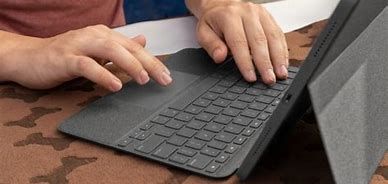
Typing experience
I spend a lot of my day writing emails and longer posts, so the typing experience mattered more than anything else. The Combo Touch keys have decent travel and a slightly clicky tactile response that I personally prefer over the shallower laptop-style scissor keyboards. After a few days I felt comfortable hitting 70–80% of my usual desktop typing speed. I noticed two things:
- Key travel and spacing: The keys are spaced well, and the travel is satisfying for long sessions. My hands didn't cramp in multi-hour typing sessions the way they sometimes do on ultra-thin keyboards.
- Backlight behavior: The backlighting is bright enough for dim environments and looks even across the keycaps. The brightness steps are useful, and the keys maintain their markings clearly at every level.
There were small quirks: function-row shortcuts map to iPadOS-specific controls, and some combinations (particularly when switching between apps) take a moment to feel natural. I also noticed a faint wobble if I pressed hard on the far edges of the keyboard while the iPad was in steeper kickstand angles — rare, but present.
Trackpad and cursor controls
The trackpad is one of the Combo Touch’s strongest features. It’s responsive, large enough for comfortable multi-finger gestures, and supports the full suite of iPadOS gestures I use daily (two-finger scrolling, three-finger app switching, pinch-to-zoom in apps that support it). The glass-like surface feels smooth and precise; I found myself reaching for it instead of switching to the touchscreen for most cursor-based tasks.
Looking for the best Electronics deals on Amazon?
View Offers →That said, the physical click of the trackpad is a little louder and firmer than the Apple Magic Keyboard's — if you type in libraries or very quiet environments, the click may be noticeable. For me this was a minor trade-off for the more tactile feel and the extra surface area.
Kickstand and angle stability
The multi-angle kickstand is more versatile than I expected. I use three primary setups:
- Steep typing angle on a desk — comfortable and stable for touch-typing.
- Shallow angle for watching videos on my lap — stands securely without wobble.
- Nearly flat angle for drawing with the Apple Pencil — works well when I need low-slope drawing support.
I appreciated that the hinge held firm across those positions. On a lap, the iPad+Combo Touch felt stable even when using the touchscreen. The only time I felt any instability was when I rested my palm against the screen while sketching at the steepest angle — but that’s something I would expect from almost any folio-style case.
Protection and daily wear
After months of daily carry in my bag, the Combo Touch has held up well. The cover shows a few scuffs but no structural issues. The keyboard surface has some light wear on the most-used keys (A, E, R, S), which is normal and not distracting. I spilled a small bit of coffee near the edge of the case once; the fabric absorbed the spill and I wiped it clean — no liquid leaked to the iPad itself.
One practical annoyance: because the keyboard adds thickness, sliding the iPad into some snug sleeves or pockets is tighter. If you like to slip the iPad into small side pockets on a backpack, expect reduced clearance when the keyboard is attached.
Battery and power behavior
One of the Combo Touch's conveniences is that it uses the iPad's Smart Connector for power and data. I liked that I never had to charge the keyboard or pair it; it's 'always ready' when connected. That does mean one thing: if you use the keyboard a lot, it draws a tiny amount of power from the iPad. In practice I didn't notice a material change in my daily battery life, but if you're running very long, heavy sessions away from a charger it’s worth being mindful.
Software compatibility and ergonomics
Because the keyboard relies on the Smart Connector and iPadOS, the keys and trackpad integrate smoothly with the system. I noticed good support for keyboard shortcuts in many apps and reliable gesture handling. Where the Combo Touch occasionally stumbles is in older third-party apps with limited external keyboard support — not the keyboard's fault, but something to consider if you rely on niche software. In my experience mainstream apps (word processors, spreadsheets, mail, web) behaved as expected.
Price and value (my take)
When I weighed the Combo Touch against competing options, I found it to offer a compelling set of features at a price point that felt reasonable for what it provides: full protection, a real trackpad, backlit keys, and the convenience of the Smart Connector. If you prioritize typing feel and value, the Combo Touch gives more than many lightweight Bluetooth keyboards. If you prioritize the absolute slimmest profile or the Apple aesthetic, the Magic Keyboard remains appealing — but for me the Combo Touch's function-over-form approach won out.
Shop the latest Electronics picks on Amazon.
Browse Now →Pros & Cons
- Pros:
- Smart Connector integration — no charging or pairing required.
- Comfortable key travel suitable for long typing sessions.
- Large, accurate trackpad that supports iPadOS gestures.
- Multi-angle kickstand that holds well on desk and lap.
- Good day-to-day protection with durable outer materials.
- Backlit keys for working in low light.
- Cons:
- Adds noticeable weight and bulk to the iPad.
- Re-attachment of the detachable keyboard can require careful alignment.
- Trackpad click is a bit louder than Apple’s Magic Keyboard.
- Some wobble at extreme keypresses on the far edges in certain angles.
- May not fit very slim sleeves or pockets with the keyboard attached.
Comparison: Combo Touch vs Apple Magic Keyboard vs Folio-style Bluetooth Keyboard
| Feature | Combo Touch (my unit) | Apple Magic Keyboard | Typical Folio Bluetooth Keyboard |
|---|---|---|---|
| Connection | Smart Connector (no pairing/charging) | Smart Connector (no pairing/charging) | Bluetooth (pairing, battery) |
| Typing feel | Good travel, tactile | Low profile, very stable | Varies — often shallower travel |
| Trackpad | Large, accurate, slightly louder click | Very tight, silent click, seamless feel | Often small or absent |
| Protection | Full folio protection | Wraparound, minimal edges | Protection depends on case |
| Weight & bulk | Heaviest of the three | Light to moderate | Lightest (usually) |
| Price (relative) | Mid-range value | Premium | Budget to mid |
Who should buy the Combo Touch in 2026?
In my experience, the Combo Touch is a great fit for these types of users:
- Writers and students who want a tactile keyboard and trackpad without the fuss of charging or Bluetooth pairing.
- People who use their iPad as a daily driver for email, documents, and web work and need a stable kickstand.
- Anyone who wants better typing comfort than most ultra-thin Bluetooth keyboards without paying a premium for the Apple-branded accessory.
It might be less suitable for:
- Travelers who prize the absolute lightest setup — the Combo Touch adds weight.
- People who need the absolute quietest key and trackpad action (e.g., for recording or very quiet environments).
- Those who prefer a minimalist aesthetic and the ultra-thin profile of the Magic Keyboard.
Buying guide — what to check before you buy
From my months of use, here are the practical factors I recommend checking before buying the Combo Touch (or any keyboard case):
- Compatibility: Make sure the model matches your exact iPad generation and screen size. The keyboard-case fit and Smart Connector pins line up differently across sizes.
- How you carry it: If you use a slim tablet sleeve, measure the sleeve interior and compare it to the combined thickness of your iPad + keyboard.
- Keyboard layout: Verify your preferred language and layout are available; some regions have different keycaps.
- Backlight & brightness control: Check whether your model has backlighting and how the brightness levels work — I find this essential for evening work.
- Return policy & warranty: Since typing feel is personal, buy from a retailer with a solid return policy so you can test it for a few days and decide.
- Use case scenarios: If you often sketch or use the Apple Pencil, look at how low the kickstand folds and whether the keyboard obstructs Pencil storage or wireless charging access.
- Longevity: Consider whether you want a product that ages gracefully. Fabric surfaces show fewer scratches but may accumulate oils; plastic can suffer more visible scuffs.
Real-world tips from my months of use
After living with the Combo Touch, I picked up a few habits that improved my day-to-day experience:
- I keep the keyboard attached when commuting and remove it at home when I want a thinner tablet to hold. That gives me a balance of protection while traveling and portability at home.
- For extended battery-heavy sessions, I carry a compact USB-C charger for the iPad rather than worrying about the keyboard; even with the Smart Connector drawing power, the iPad battery holds up well for most days.
- I mapped a few custom keyboard shortcuts in the apps I use most. Because the Combo Touch uses the Smart Connector, shortcuts are consistently recognized and save time switching between apps.
Final verdict
After several months with the Combo Touch, here's my bottom line: if you want a practical, comfortable, and reliable keyboard case that gives your iPad a proper productivity setup, the Combo Touch is one of the best value choices out there. I was pleasantly surprised by the typing comfort and the trackpad quality — both felt like real improvements over cheap Bluetooth folios. The main compromises are weight and a slightly louder trackpad click, but neither was a deal-breaker for my workflow.
In my experience, the Combo Touch is ideal for writers, students, and professionals who use their iPad as a work tool and appreciate the convenience of Smart Connector integration. If your priorities are the absolute lightest carry or the quietest clicks, you might prefer other options — but for the combination of protection, typing comfort, and price, I still reach for my Combo Touch most days.